
Whether you want to add watermarks, copyright notices, comments, or highlights, you need to create a mechanism to help you do so in your existing PDFs.
In automation, the texts and PDFs are generated dynamically based on data sources, which means when we execute programs, reports are generated. While reports are being generated, we need to add watermarks or any type of specific text to either a single page or every page of the PDF. That’s where Python comes into play.
Python is a vast language, and its developer community has created multiple packages to deal with PDFs.
One popular package is called “pymupdf” and that is what we will use in today’s article.
To efficiently add text to an existing PDF in Python, use the “pymupdf” library’s “page.insert_text()” function.
For this tutorial, I am using the below “demo.pdf” file:
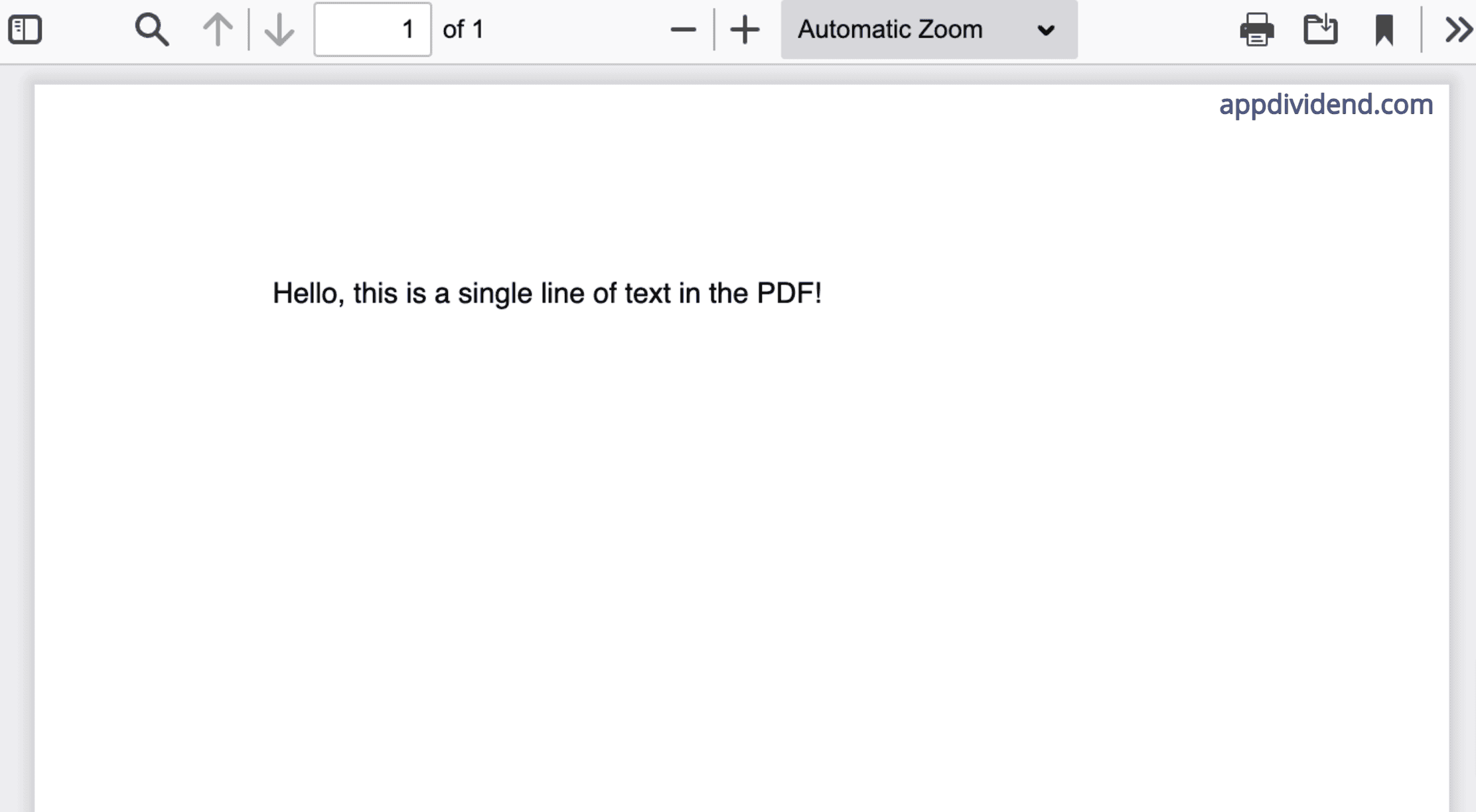
You can see from the above PDF that only one line has been written.
What we will do is add the second line of text to this PDF.
Here is the step-by-step guide:
Step 1: Install pymupdf
You can install the pymupdf (fitz) library using the command below:
pip install pymupdf
Step 2: Import the pymupdf library
# Importing PyMuPDF

import pymupdf
Step 3: Opening the PDF file
As we already discussed, we will open the “demo.pdf” file using “with statement” in Python.
# Opening the PDF file

with pymupdf.open("demo.pdf") as pdf:
When the file operation is completed, the with statement automatically closes the file object, making it memory efficient.
Step 4: Accessing the first page
Since our PDF only contains a single page, we will access the first page using the code below:
# Opening the PDF file
with pymupdf.open("demo.pdf") as pdf:

    # Accessing the first page
    page = pdf[0]
Step 5: Define text and position for the page
Defining the text means which text you want to add to the page. It can be a watermark, simple sentence, paragraph, decorative text, or notice. For our tutorial, we will add a simple statement.
The position is the page coordinates in the format (x, y). It simply means the place on the whole first page where you want to add the data.
# Defining the text and position

text = "We won Perth Test in 2024"
position = pymupdf.Point(100, 200)  # Adjust coordinates (x, y) as per your requirement
Step 6: Using insert_text() function to add data
After finalizing the page for insertion, we finalized what text and where to add it and are now finally adding it with the insert_text () function.
# Adding the text to the PDF page
page.insert_text(position, text, fontsize=12,
                 fontname="helv")  # Helvetica font
Here, we passed the position, text, fontsize, and fontname as arguments.
Step 7: Saving the modified PDF
The pymupdf library provides a .save() function to save the modified pdf in the local system.
# Saving the modified PDF to a new file

  pdf.save("added_text.pdf")
  print("We have added a text to PDF successfully!")
Here is the complete code:
# Importing PyMuPDF
import pymupdf

# Opening the PDF file
with pymupdf.open("demo.pdf") as pdf:
    # Accessing the first page
    page = pdf[0]

    # Defining the text and position
    text = "We won Perth Test in 2024"
    position = pymupdf.Point(100, 200)  # Adjust coordinates (x, y) as needed

    # Adding the text to the PDF page
    page.insert_text(position, text, fontsize=12,
                     fontname="helv")  # Helvetica font

    # Saving the modified PDF to a new file
    pdf.save("added_text.pdf")
    print("We have added a text to PDF successfully!")
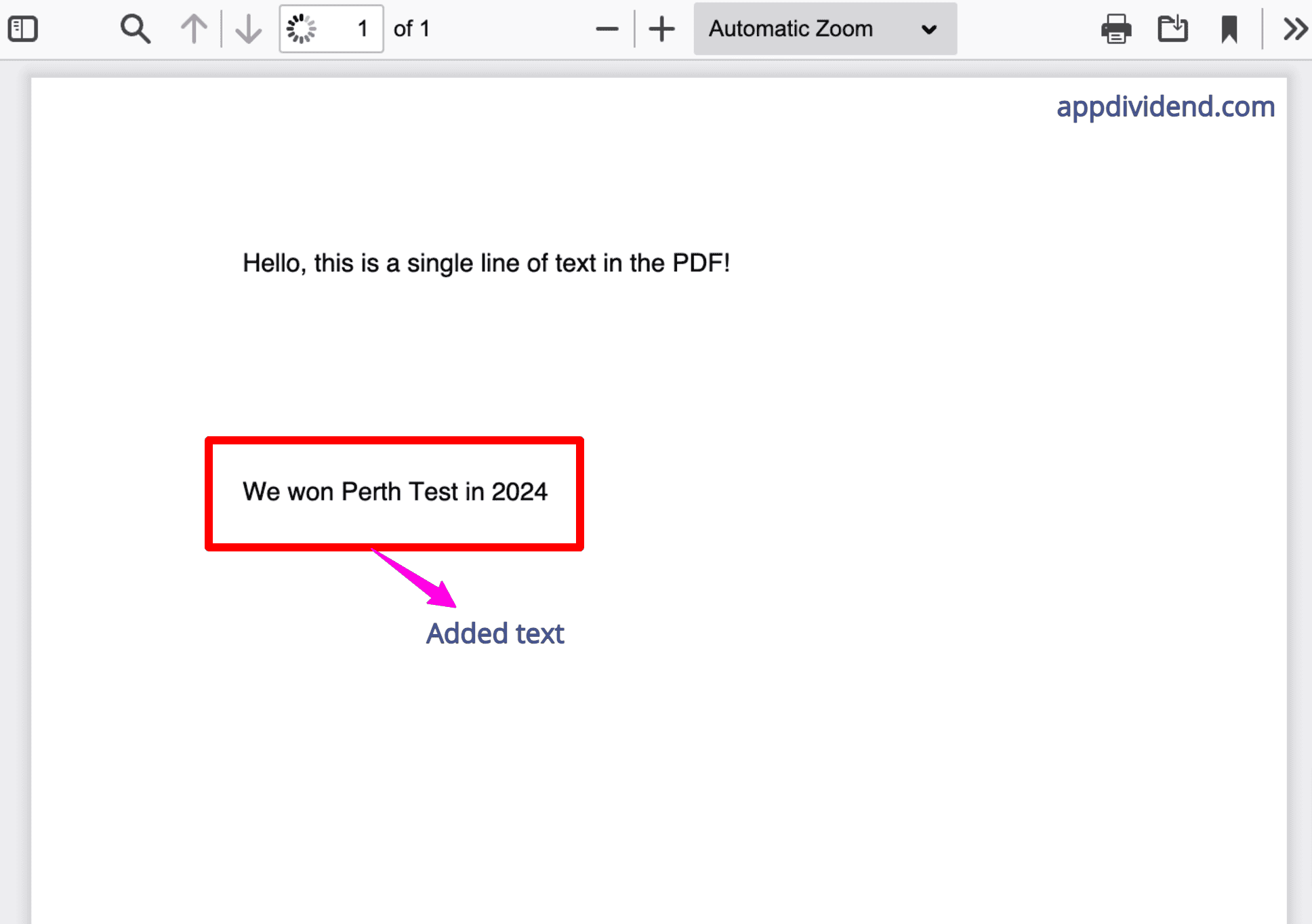
Save the Python file, execute the file, and see the output before and after the process:
Before adding text:

After adding text:
That’s all, mates!

