

Moving files means changing the file’s location within the file system from one location to another without changing its content.
Here are three ways to move a file in Python
- Using the shutil.move()
- Using os.rename()
- Using the pathlib.Path()
Method 1: Using shutil.move()
The shutil.move() function from the shutil (shell utilities) module is more versatile than os.rename(). It allows moving files between different filesystems and automatically renames files when the destination is a directory.
It’s a good choice for more complex file operations.
It works for both files and folders. However, it silently overwrites the existing destination file.
Moving a file
Let’s move a file from one folder to another folder. Before moving a file, our file.txt path relative to the current working directory is dir/newdir/file.txt:

We will move this file inside the direct “dir” folder:
import shutil

source_file_path = "dir/newdir/file.txt"
destination_file_path = "dir/file.txt"

# Moving a file by using shutil.move()
shutil.move(source_file_path, destination_file_path)

print('The file is successfully moved to another destination')

# Output: The file is successfully moved to another destination
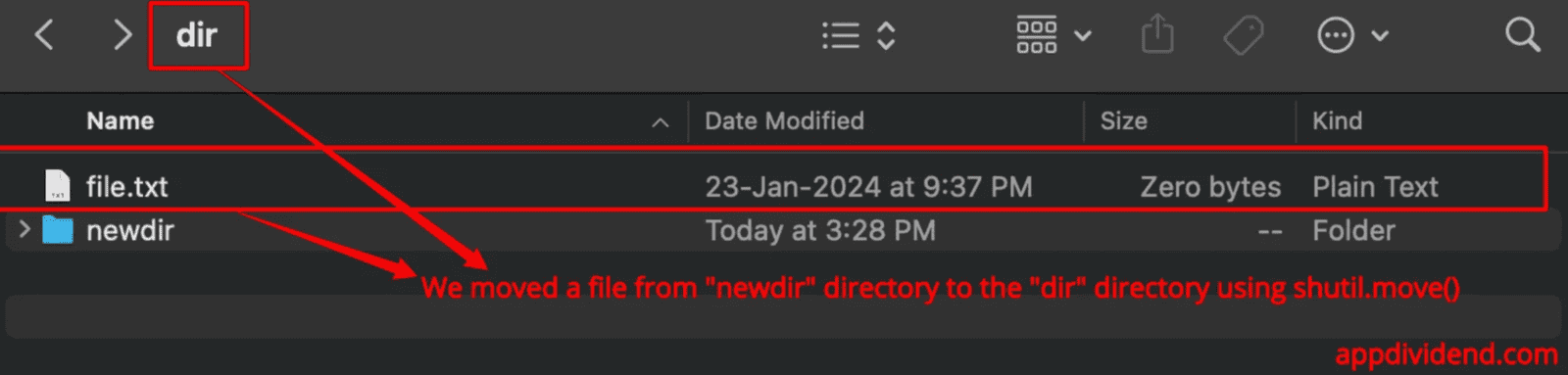
Moving an entire directory
Let’s move a directory using shutil.move() method by passing the source and destination folders.
Before moving a directory, our current directory looks like this:

Now, we will move the directory called “info” to the “csv/info_backup” folder.
import shutil

source_dir_path = "newdir/data/info"
destination_dir_path = "csv/info_backup"

# Moving a directory by using shutil.move()
shutil.move(source_dir_path, destination_dir_path)

print('The folder is successfully moved to another destination')

# Output: The folder is successfully moved to another destination
Here is the moved directory screenshot:

Now, the moved directory has a new name, “info_backup”, under the “csv” folder.
Moving multiple files
You can use the os.listdir() function to list all files in a directory, or you can manually create a list of file names if the files are not all in the same directory.
Use a loop to iterate over the list of files, and use shutil.move() to move each file to the desired destination.

import os
import shutil

source_dir = "dir/newdir"

destination_dir = "dir"

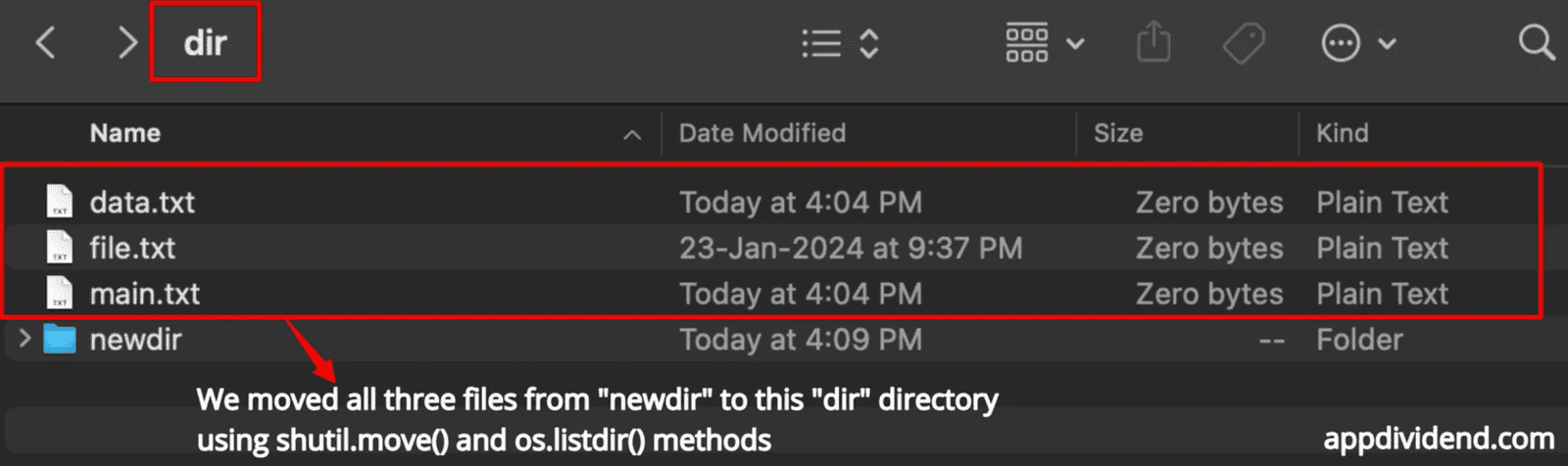
files_to_move = os.listdir(source_dir)

for file_name in files_to_move:
    source_file = os.path.join(source_dir, file_name)
    destination_file = os.path.join(destination_dir, file_name)

    # Moving the file
    shutil.move(source_file, destination_file)
Here is the output:
 Make sure that the destination directory exists before running the script.
Also, handle exceptions as necessary, especially when files may already exist in the destination directory or the source file does not exist.
Method 2: Using os.rename()
The os.rename() function from the os module renames a file or directory, including moving it to a different directory. It is straightforward but is limited to moving within the same filesystem.
If the file is not found in the provided path, it will return the FileError.
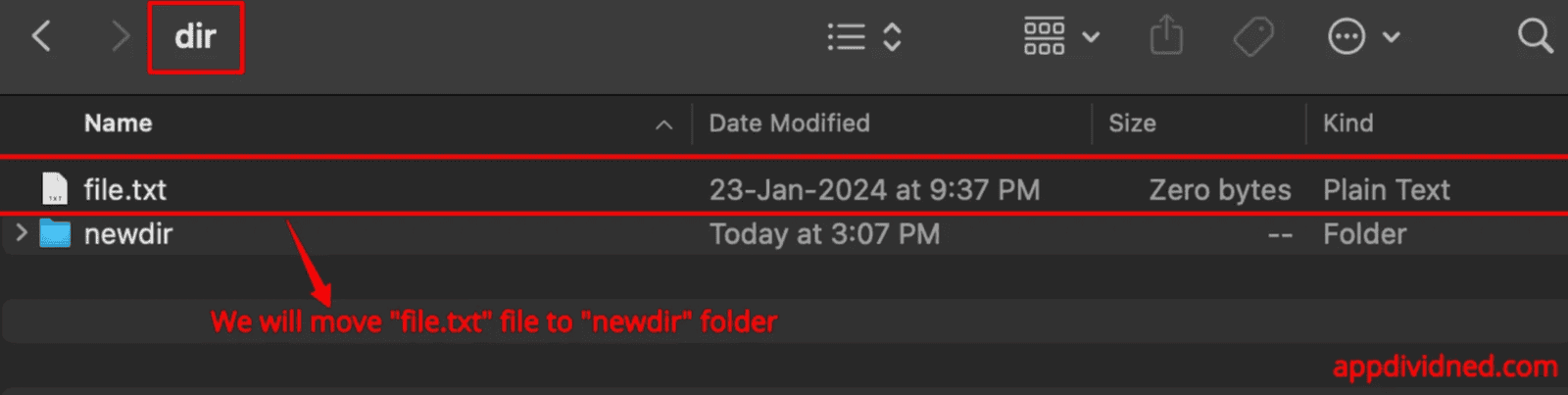
Here is the file.txt file, which we will move to a different destination:
import os

# Moving a file by renaming it's path
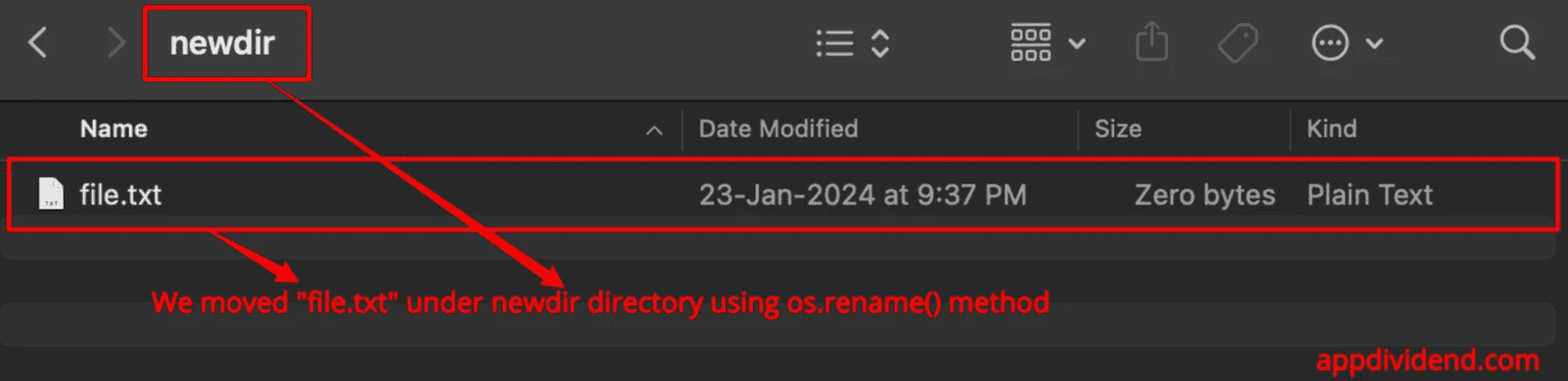
os.rename('dir/file.txt', 'dir/newdir/file.txt')

print('The file is successfully moved to another destination')

# Output: The file is successfully moved to another destination
After moving a file to a new destination:
Method 3: Using pathlib.Path.rename()
The pathlib module, introduced in Python 3.4, provides an object-oriented approach to handling filesystem paths. The main advantage is that it is well-suited to scripts that handle many file paths.
Using Path() objects, you can move a file with the rename() method, which works similarly to os.rename() but in an object-oriented way.
Here is our source file “file.txt” inside the “dir” folder:

We will move the “file.txt” file to the new destination, which is the “newdir” directory:
from pathlib import Path

source_file_path = Path("dir/file.txt")
destination_file_path = Path("dir/newdir/file.txt")

# Move a file by using source_file_path.rename()
source_file_path.rename(destination_file_path)

print('The file is successfully moved to another destination')

# Output: The file is successfully moved to another destination

That’s all!

