
Python provides several methods for calculating the number of frames in a video.
Here are five ways:
- Using OpenCV’s CAP_PROP_FRAME_COUNT Property
- Using Manual Frame Counting with OpenCV
- Using ffprobe from FFmpeg via Subprocess
- Using PyAV Library
- Using MoviePy Library
If you are creating a facial recognition, motion detection, or object tracking app, you often need to process videos frame by frame.
Knowing the total number of frames in a video file allows you to determine the video’s duration.
Here is the formula:
duration (seconds) = total_frames / FPS (Frames per second)
Here is the “sample.mp4” video we will be using for this practical:
Method 1: Using OpenCV’s CAP_PROP_FRAME_COUNT Property
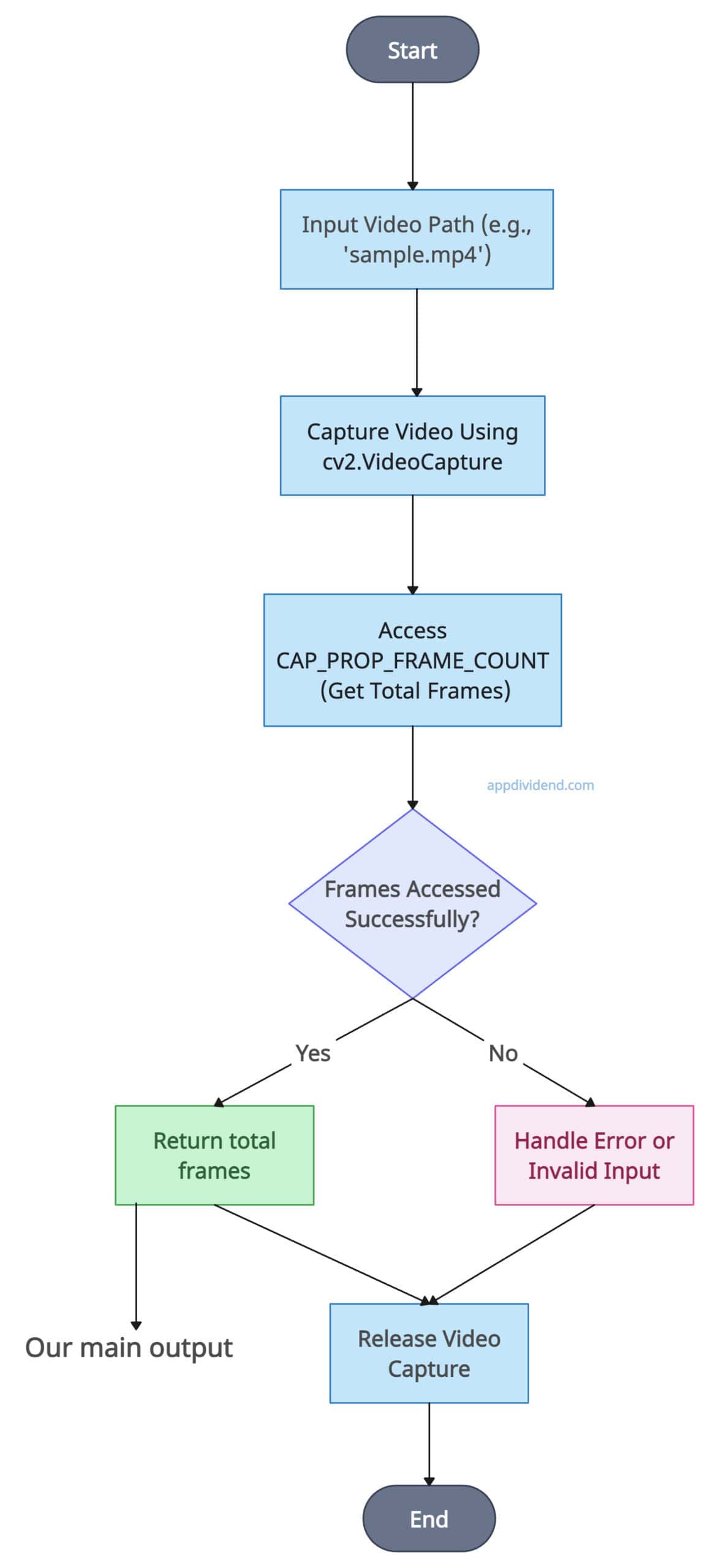
Capture the input video using cv2.VideoCapture property and then use the cv2.CAP_PROP_FRAME_COUNT property wrapped up by int() function to get the total number of frames.
You need to install the opencv-python library to use the cv2.VideoCapture property.
pip install opencv-python
Decision tree diagram
Here is the complete Python code:
import cv2


# Custom function that returns total number of frames
def count_frames_opencv(video_path):
    # Capturing the input video
    video = cv2.VideoCapture(video_path)

    # Accessing the CAP_PROP_FRAME_COUNT property
    # To get the total frames
    total_frames = int(video.get(cv2.CAP_PROP_FRAME_COUNT))
    video.release()
    return total_frames

# Example usage


# Input video
video_path = 'sample.mp4'

# Calling the custom function
frame_count = count_frames_opencv(video_path)
print(f"Total frames: {frame_count}")
Output
Total frames: 230
We get the total number of frames in the output, which is 230. The CAP_PROP_FRAME_COUNT approach is blazing fast and avoids reading each fram,e saving time.
The best use case is for obtaining quick estimates with standard video formats, where accuracy is not a primary concern.
However, it might return 0 or -1 for certain codecs or corrupted files. It also heavily relies on the video’s metadata, which means that if the metadata is incorrect, the final output will be incorrect.
Therefore, it provides moderate accuracy, which may not be suitable for highly secure applications.
The time complexity is O(1) and the space complexity is also O(1) because it does not have to iterate over each frame for counting and requires less memory usage.
Method 2: Manual Frame Counting with OpenCV
If you do not want to rely on metadata and maintain the high accuracy of several frames, you need to count manually with the help of OpenCV using a while statement.
import cv2

# Custom function to manually count
# total number of frames
def count_frames_manual(video_path):
    # Capturing a video
    video = cv2.VideoCapture(video_path)

    # total frames set to 0
    total_frames = 0

    # Using while statement
    while True:
        # Counting frames using loop
        ret, frame = video.read()
        if not ret:
            break
        total_frames += 1
    video.release()
    return total_frames


# Sample input video
video_path = 'sample.mp4'
frame_count = count_frames_manual(video_path)

print(f"Total frames: {frame_count}")
Output
Total frames: 230
It counts each frame to ensure an accurate total and does not rely on metadata. However, this approach is the most time-consuming because it reads every frame from memory, resulting in high CPU usage. It is not suitable for processing multiple large videos.
If you require accuracy and do not prioritize time efficiency, I would recommend using this approach; otherwise, consider using OpenCV’s CAP_PROP_FRAME_COUNT property.
The time complexity is O(n), where “n” is proportional to the number of frames it needs to go through.
The space complexity is O(1) because it reads one frame in memory at a time.
To optimize this approach, consider processing keyframes or sampling.
Method 3: Using ffprobe from FFmpeg via Subprocess
Use the ffprobe tool from the FFmpeg library to extract metadata directly from the video via a subprocess call. The ffprobe approach requires an external dependency, FFmpeg/ffprobe, which you must install separately.
brew install ffmpeg
If you are using a Windows machine, then ensure FFmpeg is installed and added to the system PATH.
import subprocess
import json


# Custom function that accepts video
# and return the count of total frames
def count_frames_ffprobe(video_path):
    # command for subprocess call
    cmd = [
        'ffprobe',
        '-v', 'error',
        '-select_streams', 'v:0',
        '-count_frames',
        '-show_entries', 'stream=nb_read_frames',
        '-print_format', 'json',
        video_path
    ]
    # Running the subprocess
    result = subprocess.run(cmd, stdout=subprocess.PIPE,
                            stderr=subprocess.PIPE, text=True)
    # Converting json result into dictionary object
    output = json.loads(result.stdout)

    # Counting frames
    frame_count = int(output['streams'][0]['nb_read_frames'])
    return frame_count


# Example usage
video_path = 'sample.mp4'
frame_count = count_frames_ffprobe(video_path)
print(f"Total frames: {frame_count}")
Output
Total frames: 230
This is a highly accurate approach that handles a wide array of video formats and codecs. However, it does require third-party software to be installed on your machine, which takes more time to process and may face compatibility issues on different operating systems. Since we are using a subprocess module, it involves spawning a new process.
Time complexity is O(n), where n is the FFmpeg software, which takes some time to load. It reads the frame count directly from metadata, rather than reading each frame.
Space complexity is O(1) because it requires minimal usage.
Method 4: Using PyAV Library
The PyAV library allows us to iterate over each frame of the video and count it. You can install PyAV using the command below:
pip install av
Now, create a custom function that accepts a video as an input file, opens it, decodes each frame using the .decode() function, and counts the total number of frames.
import av

# Custom function that uses .decode() function
# to decode each frame
def count_frames_pyav(video_path):
    container = av.open(video_path)
    total_frames = 0
    for frame in container.decode(video=0):
        total_frames += 1
    container.close()
    return total_frames


# Input video
video_path = 'sample.mp4'

# Calling the custom function
frame_count = count_frames_pyav(video_path)

# Printing the number of frames
print(f"Total frames: {frame_count}")
Output
Total frames: 230
The PyAV approach is accurate and supports various formats and codecs. However, it requires iterating over frames, which can be a time-consuming process. It also requires the installation of PyAV, which can be challenging due to dependencies on various operating systems.
It has a time complexity of O(n) where n is a frame through which it will iterate.
The space complexity is O(1).
Method 5: Using MoviePy Library
Moviepy is a specialized video editing library in Python that can load the video file and calculate the frame count by multiplying the video’s frames per second (FPS) by its duration.
Install the moviepy library using the command below:
pip install moviepy
If you are facing any error, install FFmpeg in your system.
Here is the complete code:
from moviepy.editor import VideoFileClip

# Custom function that accepts video
# And returns frame count
def count_frames_moviepy(video_path):

    # Calculating FPS and duration
    clip = VideoFileClip(video_path)
    fps = clip.fps
    duration = clip.duration

    # Counting frames based on fps and duration
    frame_count = int(fps * duration)
    clip.reader.close()
    clip.audio.reader.close_proc()
    return frame_count


# Input video
video_path = 'sample.mp4'

# Calling the custom function
frame_count = count_frames_moviepy(video_path)

# Printing the frame count
print(f"Total frames: {frame_count}")
Output
Total frames: 230
If you are using a video with a variable frame rate, this approach may not work as expected. It also depends on MoviePy and FFmpeg being installed on your machine.
Therefore, if you encounter an error in dependencies, you will be unable to run this program.
Since this is a video editing library, it can handle a wide range of video formats and codecs. It provides high-level, easy functions to integrate into your project.
The time complexity is O(1) because it is calculated based on fps and duration.
The space complexity is O(1) because of constant space usage.
Measuring execution time for each approach
I want to measure the execution time for each method to get an idea of which one is the fastest in returning the output. These are my personal findings on which method is the fastest.
To measure the time for each method, we can use the “time” module and then plot the bar chart using the “matplotlib” library.
Here is the complete code:
import cv2
import subprocess
import json
import av
from moviepy.editor import VideoFileClip
import time
import matplotlib.pyplot as plt

# Custom function that returns total number of frames using OpenCV
def count_frames_opencv(video_path):
    video = cv2.VideoCapture(video_path)
    total_frames = int(video.get(cv2.CAP_PROP_FRAME_COUNT))
    video.release()
    return total_frames

# Custom function to manually count total number of frames using OpenCV


def count_frames_manual(video_path):
    video = cv2.VideoCapture(video_path)
    total_frames = 0
    while True:
        ret, frame = video.read()
        if not ret:
            break
        total_frames += 1
    video.release()
    return total_frames

# Custom function that accepts video and returns the count of total frames using ffprobe


def count_frames_ffprobe(video_path):
    cmd = [
        'ffprobe',
        '-v', 'error',
        '-select_streams', 'v:0',
        '-count_frames',
        '-show_entries', 'stream=nb_read_frames',
        '-print_format', 'json',
        video_path
    ]
    result = subprocess.run(cmd, stdout=subprocess.PIPE,
                            stderr=subprocess.PIPE, text=True)
    output = json.loads(result.stdout)
    frame_count = int(output['streams'][0]['nb_read_frames'])
    return frame_count

# Custom function that returns total frames using PyAV


def count_frames_pyav(video_path):
    container = av.open(video_path)
    total_frames = 0
    for frame in container.decode(video=0):
        total_frames += 1
    container.close()
    return total_frames

# Custom function that returns total frames using MoviePy


def count_frames_moviepy(video_path):
    clip = VideoFileClip(video_path)
    fps = clip.fps
    duration = clip.duration
    frame_count = int(fps * duration)
    clip.reader.close()
    clip.audio.reader.close_proc()
    return frame_count


# Measure time taken by each method and store the results
video_path = 'sample.mp4'
methods = {
    'OpenCV CAP_PROP_FRAME_COUNT': count_frames_opencv,
    'OpenCV Manual Count': count_frames_manual,
    'ffprobe': count_frames_ffprobe,
    'PyAV': count_frames_pyav,
    'MoviePy': count_frames_moviepy
}

times = {}

for method_name, method_function in methods.items():
    start_time = time.time()
    frame_count = method_function(video_path)
    end_time = time.time()
    times[method_name] = end_time - start_time
    print(
        f"{method_name}: Total frames = {frame_count}, Time taken = {times[method_name]:.2f} seconds")

# Plot the results
plt.figure(figsize=(10, 6))
bars = plt.bar(times.keys(), times.values(), color='skyblue')
plt.xlabel('Method')
plt.ylabel('Time (seconds)')
plt.title('Time Taken by Each Method to Count Frames')
plt.xticks(rotation=45, ha='right')

# Add time on each bar
for bar in bars:
    plt.text(bar.get_x() + bar.get_width() / 2, bar.get_height() +
             0.05, f'{bar.get_height():.2f}s', ha='center', va='bottom')

plt.tight_layout()
plt.show()
Output

Here is the bar chart representing execution time:
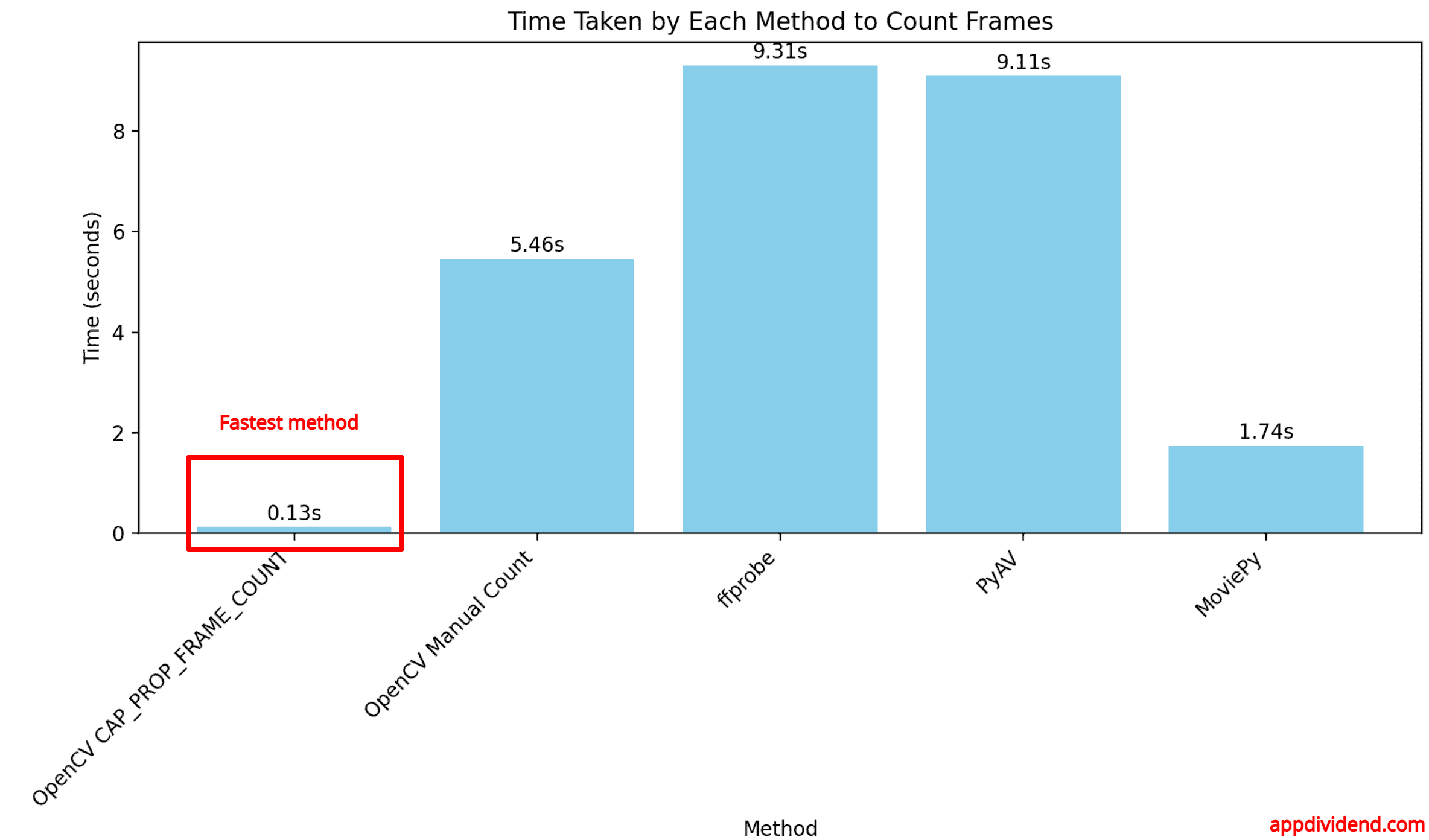
The above chart is based on my analysis and the code that I ran on my machine. Your result may vary depending on the size of the video and your current working system and its configuration.
As illustrated in the above bar chart, you can see that the fastest method is to use OpenCV’s CAP_PROP_FRAME_COUNT Property.
The second fast is using the moviepy approach. If you are looking for accuracy, opt for manual counting. If you are already editing videos, consider using the moviepy library.

